Quick Answer
The best way to choose your next laptop is to start with what you actually do every week, then buy the machine that fits that job with enough headroom to last.
For most people in 2026, a good everyday laptop should have at least 16GB of memory, a 512GB SSD if your budget allows, a comfortable keyboard, a decent 13- to 15-inch screen, enough ports for your setup, and battery life that holds up away from the charger.
Students, home users, and office workers usually do not need the most powerful processor. Creative workers, gamers, developers, and anyone editing video or running demanding software should care much more about performance, cooling, graphics, and upgrade options.
AI PC branding can be useful, especially on newer Windows laptops, but do not buy a laptop just because the box says AI. Buy it because it is fast enough, comfortable enough, supported properly, and right for your work.
Laptop Buying Checklist
| Decision | Sensible starting point | Watch out for |
|---|---|---|
| Operating system | Windows, macOS, or ChromeOS based on your apps | Buying the wrong ecosystem because the deal looks good |
| RAM / memory | 16GB for most people | 8GB on non-upgradeable laptops unless your needs are very basic |
| Storage | 512GB SSD if possible | 128GB/256GB if you store photos, games, video, or large files locally |
| Screen | 13-14 inch for portability, 15-16 inch for comfort | Low-resolution, dim, glossy screens on cheap laptops |
| Battery | Look for real-world review results, not just headline claims | Thin powerful laptops that drain fast under load |
| Ports | USB-C, charger support, HDMI/card reader if needed | Needing dongles for everything |
| Weight | Under 1.5kg for frequent travel if possible | Buying a big laptop you will hate carrying |
| Support | Windows 11, current macOS support, Chromebook update eligibility | Old clearance models with weak long-term support |
This guide is not a ranked list of models. It is the bit you should read before opening fifteen tabs and slowly becoming a spreadsheet.
Start With The Job, Not The Spec Sheet
Laptop shopping gets messy because every manufacturer wants to tell you its machine is powerful, portable, creative, smart, and somehow perfect for everyone.
Real life is more specific.
Before looking at models, decide which of these sounds most like you:
- Basic home use: browsing, email, streaming, documents, video calls
- Student use: essays, research, online classes, portability, long battery life
- Office work: Microsoft 365, Google Workspace, lots of tabs, calls, PDFs
- Creative work: photo editing, video editing, design, music, 3D, large files
- Gaming: dedicated graphics, cooling, high-refresh screen, heavy charger
- Development: memory, CPU performance, storage, screen space, keyboard comfort
- Travel: light weight, battery life, sturdy build, USB-C charging
Once you know the job, the specs become easier to judge. A laptop for essays and Netflix does not need the same hardware as a laptop for 4K video editing. A gaming laptop may be fast, but it is usually heavier, louder, and less relaxed on battery. A thin premium laptop may feel lovely, but it might not be the best choice if you need lots of ports or upgradeable parts.
Buy for the work you actually do, with a little headroom for the work you might do next year.
Choose The Right Operating System
Your operating system matters more than most spec-sheet numbers because it decides which apps you can use, how your phone connects, and how comfortable the laptop feels every day.
Windows
Windows is the most flexible choice. It works across budget laptops, premium ultrabooks, gaming machines, business laptops, 2-in-1 devices, and creator workstations.
Choose Windows if you need broad software compatibility, PC gaming, specific work apps, lots of hardware choice, or better options across different budgets.
The key 2026 point: avoid buying a Windows 10-only machine. Microsoft says Windows 10 support ended on October 14, 2025, so a new laptop should support Windows 11 properly.
macOS
MacBooks are strong choices for battery life, build quality, trackpads, quiet performance, and people already using iPhone, iPad, AirPods, iCloud, or Apple services.
Apple’s M-series MacBooks are especially good for portable performance and efficiency. For example, Apple’s 2025 MacBook Air with M4 starts with 16GB unified memory and 256GB SSD storage, according to Apple’s technical specifications.
Choose a MacBook if your apps work well on macOS and you value the Apple ecosystem. Avoid assuming it is best for everything: some specialist Windows apps, certain games, and some hardware workflows are still easier on Windows.
ChromeOS
Chromebooks are best for web-first work: browsing, documents, email, streaming, cloud storage, online learning, and simple admin.
Chromebook Plus models are worth understanding because Google sets baseline requirements. Google’s Chromebook Plus update eligibility page lists 8GB or more RAM and 128GB or more storage among the requirements.
Choose ChromeOS if you want something simple, lower maintenance, and mostly cloud-based. Avoid it if you need full desktop software, serious gaming, local creative tools, or specific Windows/macOS apps.
Windows Laptop Vs MacBook Vs Chromebook
| Type | Best for | Main tradeoff |
|---|---|---|
| Windows laptop | Most people who want choice, gaming, work apps, or varied budgets | Quality varies wildly, so you need to check the exact model |
| MacBook | Battery life, build quality, Apple ecosystem, creative and office work | Higher upgrade costs and less gaming/software flexibility |
| Chromebook | Simple web work, students, light home use, easy maintenance | Limited desktop software and weaker local app flexibility |
There is no universal winner. There is only the best fit for your apps, budget, and patience level.
How Much RAM Do You Need?
For most laptop buyers in 2026, 16GB is the sweet spot.
That does not mean every 8GB laptop is useless. A Chromebook or very basic laptop can still be fine for light browsing, streaming, and documents. But if you are buying a Windows laptop or MacBook that you want to keep for several years, 16GB gives you a lot more breathing room.
Choose:
- 8GB: very basic web use, light school work, low-cost Chromebook use
- 16GB: everyday Windows or Mac use, students, office work, lots of browser tabs
- 24GB or 32GB: creative work, development, heavier multitasking, longer lifespan
- 32GB or more: video editing, 3D, large coding projects, virtual machines, professional workloads
One important detail: many thin laptops have soldered memory. That means you cannot upgrade it later. If the RAM is not upgradeable, be more careful. The cheaper configuration can become the expensive mistake.
How Much Storage Do You Need?
Storage is where a lot of laptop deals quietly get worse.
An SSD is the standard you want. Avoid old-style hard drives in laptops unless you have a very specific reason, and be cautious with very low storage capacities.
Choose:
- 128GB: only for very light Chromebook or cloud-first use
- 256GB: workable for basic users, but tight if you store lots of files
- 512GB: the best starting point for most people
- 1TB: better for photos, video, games, creative work, or long-term use
- 2TB or more: specialist creative, gaming, or professional needs
Cloud storage helps, but it does not replace local storage for everything. Games, video files, photo libraries, offline work, downloads, and system updates all need space.
Also check whether the SSD can be upgraded. Some laptops let you replace or expand storage later. Others do not. This is one of those boring details that becomes very interesting the moment your laptop starts complaining about space.
Processor Names Explained Without The Headache
Laptop processor names are not beginner-friendly. Intel, AMD, Apple, and Qualcomm all use different naming systems, and higher numbers do not always mean a better laptop for you.
Here is the simple version:
- Intel Core Ultra laptops are common in modern Windows ultrabooks and AI PCs.
- AMD Ryzen and Ryzen AI laptops can offer strong performance and efficiency.
- Apple M-series chips power modern MacBooks.
- Qualcomm Snapdragon X chips power some thin, efficient Windows on Arm laptops.
For everyday use, do not obsess over tiny processor differences. A recent mid-range chip with enough memory and a good SSD will feel better than a flashy processor paired with weak RAM, a bad screen, and poor cooling.
Care more about the whole laptop:
- Does it stay fast under normal work?
- Does it get noisy or hot?
- Does the battery last in real reviews?
- Does it support the apps you need?
- Does it have enough RAM and storage?
If you are gaming, editing video, compiling code, or doing heavy creative work, then the processor and graphics matter much more.
Should You Buy An AI PC Or Copilot+ PC?
AI laptops are now a real category, but the branding can be slippery.
On Windows, Copilot+ PCs are a specific class of Windows 11 device with a powerful neural processing unit, or NPU. Microsoft documentation describes Copilot+ PCs as using an NPU that can perform more than 40 trillion operations per second, often written as 40+ TOPS. Some Windows AI features also have extra requirements, including memory, storage, security, and sign-in requirements.
Newer laptop chips from Qualcomm, AMD, and Intel have been designed with this AI PC era in mind. AMD’s Ryzen AI 300 Series, Intel’s Core Ultra 200V Series, and Qualcomm’s Snapdragon X platforms all lean heavily into on-device AI performance.
That sounds exciting, and some of it is genuinely useful. On-device AI can help with features such as live captions, background effects, image tools, local assistants, and privacy-friendly processing.
But here is the buying advice: do not pay extra only for the AI badge.
Ask:
- Which AI features will I actually use?
- Are they available in the UK?
- Do they work in the apps I use?
- Can the laptop do my normal work well without them?
- Am I paying for future promises rather than current benefits?
For more on separating useful features from launch noise, read our guide on how to spot overhyped tech products.
Screen Size And Display Quality Matter Every Day
The screen is one of the parts you experience constantly, so do not treat it as an afterthought.
Common sizes:
- 13 inches: very portable, good for travel and small bags
- 14 inches: often the best balance for most people
- 15-16 inches: better for comfort, multitasking, study, creative work
- 17-18 inches: desktop replacement, gaming, specialist use
Look for:
- At least Full HD / 1080p resolution on budget laptops
- Good brightness if you work near windows or outside
- Comfortable aspect ratio, such as 16:10 or 3:2, for documents and browsing
- OLED or high-quality LCD if colour and contrast matter
- High refresh rate if you game
OLED screens can look fantastic, but they may cost more and can affect battery life depending on usage. Touchscreens and 2-in-1 hinges can be useful, but only if you genuinely want tablet or pen use.
Battery Life: Read The Small Print
Battery claims are optimistic by nature. A laptop that claims excellent battery life may still drain quickly during video calls, gaming, creative work, or heavy multitasking.
For real buying decisions, look for independent reviews that test battery life under practical conditions. Also remember that brightness, browser tabs, background apps, external monitors, and performance modes can all change battery life.
As a rough guide:
- Students and commuters should prioritise battery life heavily.
- Home users can accept less battery if the laptop mostly stays near a plug.
- Gamers should expect poor battery while gaming.
- Creators should check battery under creative workloads, not just web browsing.
USB-C charging is also worth having. It makes travel easier and pairs nicely with good chargers and power banks. For useful accessories, see our guide to the best budget tech gadgets for everyday use.
Keyboard, Trackpad, Webcam, And Speakers
These are the human parts of a laptop. They matter more than marketing usually admits.
Before buying, check:
- Keyboard layout, key travel, backlighting, and whether the power button is in an annoying place
- Trackpad size, accuracy, and click feel
- Webcam quality for calls
- Microphone quality and noise reduction
- Speaker quality if you watch video or join calls without headphones
- Fingerprint reader or face unlock if convenience matters
If possible, try the laptop in a shop. Ten seconds typing on a bad keyboard can tell you more than a paragraph of specs.
Ports And Connectivity
Ports sound boring until the laptop arrives and you realise you need an adapter for your monitor, camera, storage drive, mouse, charger, memory card, and dignity.
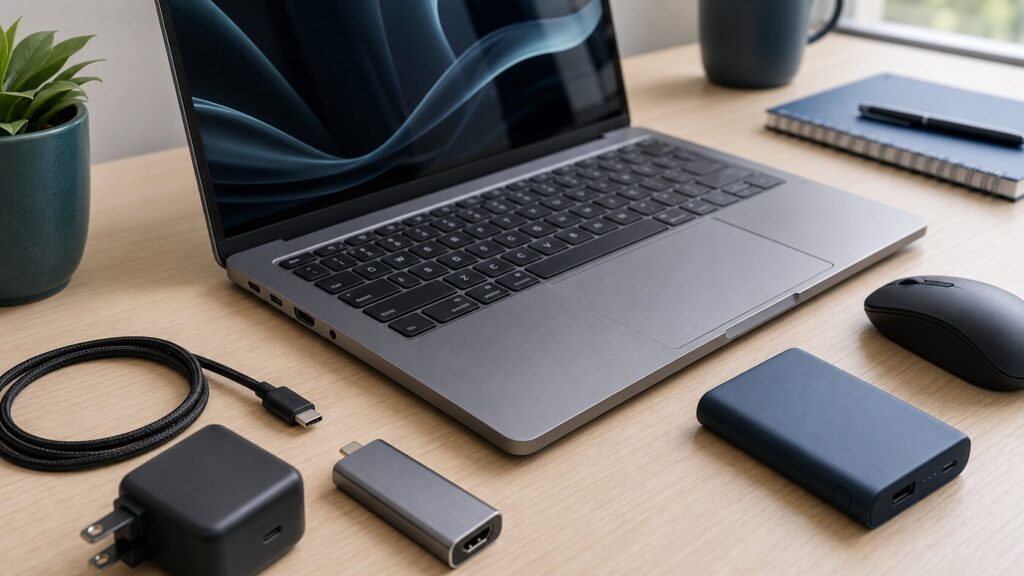
Common useful ports include:
- USB-C
- USB-A for older accessories
- HDMI for monitors and TVs
- SD or microSD card reader for cameras
- Headphone jack
- Dedicated charging port or USB-C charging
For wireless, Wi-Fi 6 is still fine for many people. Wi-Fi 6E or Wi-Fi 7 can be useful if your router supports it and you want a more future-ready setup.
Do not buy purely on port count. Buy based on your actual desk, monitor, charger, and accessories.
Build Quality, Weight, And Repairability
A laptop can have great specs and still feel cheap, bendy, hot, loud, or awkward.
Check:
- Weight
- Hinge stiffness
- Keyboard deck flex
- Fan noise
- Heat under load
- Charger size
- Warranty
- Repair options
- Whether RAM or storage is upgradeable
If you travel often, weight and charger size matter. If the laptop stays on a desk, screen size and ports may matter more. If you want to keep the laptop for years, repairability and support become part of the value.
What To Buy For Different Needs
Best Laptop Type For Students
Most students should look for a 13- or 14-inch laptop with 16GB RAM if budget allows, a decent keyboard, long battery life, and enough storage for coursework.
A MacBook Air, a good Windows ultrabook, or a Chromebook Plus can all make sense depending on the course. Check course software first. Engineering, design, gaming, media, and computer science courses may have specific requirements.
Best Laptop Type For Home Use
For browsing, streaming, admin, shopping, email, photos, and video calls, you do not need a powerhouse.
Look for a comfortable 14- or 15-inch screen, 16GB RAM if possible, 512GB storage if you keep photos locally, and a webcam that does not make every family call look like found footage.
Best Laptop Type For Work
For office work, prioritise keyboard comfort, screen quality, webcam, microphone, battery life, and reliability.
If your work depends on Microsoft 365, Teams, business security tools, or specific company software, Windows may be simplest. If your company supports macOS and you prefer the Apple ecosystem, a MacBook can be excellent.
Best Laptop Type For Creative Work
For photo editing, video editing, design, music production, and 3D work, look beyond basic specs.
Prioritise CPU and GPU performance, 24GB or 32GB RAM if your workload needs it, colour-accurate screen options, 1TB storage or more, fast ports, and good cooling.
Best Laptop Type For Gaming
Gaming laptops need a dedicated GPU, strong cooling, a high-refresh display, and enough power to run the games you care about.
Expect tradeoffs: gaming laptops are usually heavier, louder, less subtle, and worse on battery. The charger may also be large enough to qualify as a minor household object.
Common Laptop Buying Mistakes
Avoid these:
- Buying the cheapest laptop with no thought for support
- Choosing 8GB RAM on a non-upgradeable Windows laptop you want to keep for years
- Paying for a powerful processor while accepting a poor screen
- Forgetting to check weight and charger size
- Buying a gaming laptop for normal office work
- Buying a Chromebook before checking app compatibility
- Assuming AI branding means the laptop is automatically better
- Ignoring return policy and warranty
- Buying an old Windows 10 laptop without checking Windows 11 support
- Choosing too little storage because cloud storage exists
The best laptop is not the one with the loudest spec sheet. It is the one that fits your daily routine with the fewest compromises.
The SignalTrove Laptop Spec Shortlist
If you want a simple starting point, use this:
Everyday Windows Laptop
- Windows 11
- 14- or 15-inch screen
- 16GB RAM
- 512GB SSD
- Recent Intel Core Ultra, AMD Ryzen, or Snapdragon X chip
- Good keyboard and webcam
- USB-C charging if possible
MacBook For Most People
- MacBook Air unless you know you need Pro performance
- 16GB unified memory as a sensible starting point
- 512GB storage if you store lots locally
- Check app compatibility before switching from Windows
Chromebook For Simple Use
- Chromebook Plus if budget allows
- 8GB RAM or more
- 128GB storage or more
- Check update eligibility
- Best for web-first work, not specialist desktop apps
Creative Or Developer Laptop
- 24GB or 32GB RAM if workload needs it
- 1TB SSD if working with large projects
- Strong CPU and GPU where relevant
- High-quality screen
- Good cooling and ports
Gaming Laptop
- Dedicated GPU
- 16GB RAM minimum, 32GB if budget allows
- 512GB or 1TB SSD
- High-refresh screen
- Real reviews for heat, noise, and gaming performance
FAQ
How Do I Choose A Laptop?
Choose a laptop by starting with your main use: study, work, home use, gaming, creative work, or travel. Then choose the operating system, memory, storage, screen size, battery life, and ports that fit that use.
For most people, 16GB RAM, a 512GB SSD, and a comfortable 14- or 15-inch screen are a strong starting point.
Is 8GB RAM Enough For A Laptop?
8GB RAM can be enough for basic web browsing, documents, streaming, and some Chromebook use.
For a Windows laptop or MacBook you want to keep for several years, 16GB is a safer choice. This matters even more if the memory cannot be upgraded later.
Is 256GB Storage Enough?
256GB can be enough if you mostly use cloud storage and do not keep lots of photos, videos, games, or large files locally.
512GB is a better starting point for most people. Creative workers and gamers should consider 1TB or more.
Should I Buy A Windows Laptop Or MacBook?
Buy a Windows laptop if you need the broadest app compatibility, PC gaming, more hardware choice, or a wider budget range.
Buy a MacBook if your apps work on macOS and you value battery life, build quality, quiet performance, and the Apple ecosystem.
Are Chromebooks Worth Buying?
Chromebooks are worth buying if your work is mostly web-based and you want something simple, affordable, and low maintenance.
They are not ideal if you need full Windows or macOS desktop apps, serious gaming, or specialist creative software.
Should I Buy A Copilot+ PC?
A Copilot+ PC can be a good choice if you want a modern Windows laptop with strong battery life, current hardware, and access to newer AI features.
Do not buy one only for the label. Check app compatibility, UK feature availability, real-world battery life, and whether the laptop is good even without the AI features.
What Is The Best Laptop Size?
For most people, 14 inches is the best balance of portability and comfort.
Choose 13 inches if you travel a lot, 15 or 16 inches if you want more screen space, and larger sizes only if the laptop mostly stays on a desk.
Final Recommendation
Choosing a laptop gets much easier when you stop asking “What is the best laptop?” and start asking “What is the best laptop for my actual week?”
For most people, the answer is not the most expensive model. It is a well-built Windows laptop, MacBook, or Chromebook with enough memory, enough storage, a screen you like looking at, a keyboard you like typing on, and support that will last.
Specs matter, but the daily experience matters more. A laptop is something you touch, carry, charge, stare at, and rely on. Buy the one that makes those everyday moments feel easy.
That is the good signal: less spec-sheet theatre, more useful machine.